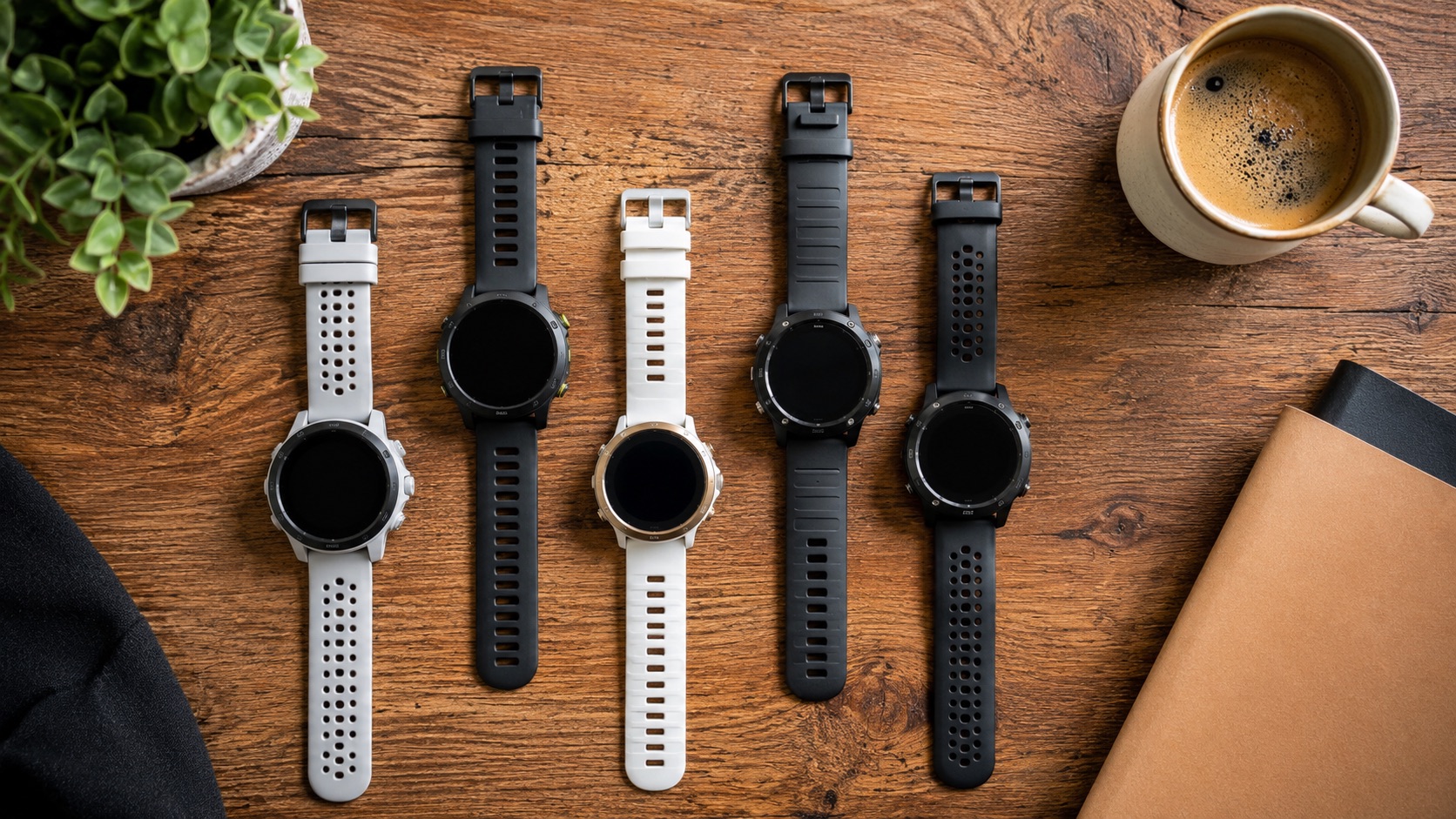
Best Running Watch Data Fields for 2026: Setup Guide for Every Run Type
The data fields you display on your running watch directly impact how you train. Too many fields and you spend more time reading your wrist than running. Too few and you miss critical information that could improve your pacing, prevent overtraining, or help you nail a workout. The ideal setup depends entirely on what type of run you are doing.
In this guide, we break down the best data field configurations for every major run type: easy runs, tempo runs, intervals, long runs, and races. We include specific setup instructions for both Garmin and COROS watches. If you want to optimize your daily watch face as well, check our guides to the best Garmin watch faces for running and the best COROS watch faces for running.
Why Data Field Selection Matters
Every piece of data on your watch screen competes for attention. When you glance at your wrist during a run, your brain needs to process the information in about one second. If you are displaying six fields, you can only meaningfully absorb one or two per glance. The rest become visual noise.
The solution is configuring different data screens for different run types. Most running watches support multiple activity profiles or data pages that you can swipe between. Set up each page with purpose, and switch your primary page based on the session.
Easy Run Data Fields
Easy runs are the foundation of endurance training. The purpose is aerobic development at low intensity. The biggest risk on easy days is running too fast, which compromises recovery and reduces the quality of your next hard session.
Recommended Fields (3 maximum)
- Heart rate or heart rate zone
- Elapsed time
- Current pace (optional)
Why This Works
Heart rate is the primary guide on easy days. Staying in Zone 2 (typically 60 to 75 percent of max heart rate) ensures you are building aerobic capacity without excessive fatigue. Elapsed time tells you how long you have been running without creating pace pressure.
Current pace is optional and even controversial for easy runs. Some coaches recommend hiding pace entirely on easy days because seeing a “slow” number triggers competitive runners to speed up. If you can run by heart rate alone, try removing pace from your easy run screen for a few weeks.
What to Avoid on Easy Runs
Remove distance from easy run screens. Knowing your mileage while running creates a subconscious urge to hit a number rather than running by time and effort. Set a time goal (45 minutes, 60 minutes) and let distance be whatever it ends up being.
Remove cadence and other performance metrics. You do not need to optimize anything on easy days. Just run easy.
Tempo Run Data Fields
Tempo runs develop lactate threshold fitness. You are running at a sustained “comfortably hard” effort, typically 15 to 20 seconds per kilometer slower than your 10K race pace. Precision matters here because too slow fails to stimulate adaptation, and too fast turns it into an unsustainable effort.
Recommended Fields (4 fields)
- Lap pace (current interval)
- Heart rate zone
- Elapsed time
- Distance
Why This Works
Lap pace is essential for tempo runs. Unlike average pace, lap pace shows your current effort without the influence of your warmup or cooldown. Press lap when you begin the tempo portion, and lap pace becomes your real time feedback for the working section.
Heart rate zone confirms your effort level. A proper tempo effort sits in upper Zone 3 to lower Zone 4 for most runners. If heart rate climbs into Zone 5 during a tempo, you are running too fast.
Distance helps you know how much is left. If your plan calls for 20 minutes at tempo pace, elapsed time handles that. If it calls for 5K at tempo pace, distance becomes your progress marker.
Garmin Setup for Tempo Runs
On Garmin watches:
- Go to Run activity settings
- Select Data Screens
- Edit your primary screen to show 4 fields
- Choose: Lap Pace, HR Zone, Timer, Distance
- Consider adding a second screen with Average Pace and Calories for post run review
COROS Setup for Tempo Runs
On COROS watches:
- Open the COROS app
- Go to Device, then Activity Settings, then Run
- Select Exercise Pages
- Set a 4 field page: Lap Pace, HR Zone, Duration, Distance
Interval Data Fields
Intervals are the most data intensive run type. You need to track work periods, rest periods, target paces, and heart rate recovery between efforts. The good news is that both Garmin and COROS handle programmed intervals well, auto lapping and displaying interval specific data automatically.
Recommended Fields for Work Intervals (3 to 4 fields)
- Interval pace (current rep)
- Interval time or distance remaining
- Heart rate
- Lap count (which rep you are on)
Recommended Fields for Rest Intervals (2 to 3 fields)
- Recovery heart rate
- Rest time remaining
- Next interval target pace (if available)
Why This Works
During work intervals, you need to know if you are hitting your pace target and how long is left. Heart rate confirms effort level and can warn you if you are redlining too early in a set.
During rest intervals, watching heart rate drop tells you if you are recovering enough for the next effort. If your heart rate fails to drop below 75 percent of max during rest periods, you are either running the work too hard or need longer rest.
Pre Programming Intervals
Both Garmin and COROS let you program interval workouts in advance. This is far superior to manually tracking reps:
Garmin: Create workouts in Garmin Connect, add intervals with target pace/time/distance, sync to watch. The watch handles all lap timing and displays interval specific fields automatically.
COROS: Create workouts in the COROS app with work and rest periods, set targets, sync to watch. The watch guides you through each rep with audio and vibration alerts.
If you use Garmin Coach or a structured training plan, interval workouts arrive pre programmed on your watch. See our Garmin training plans guide for setup details.
Long Run Data Fields
Long runs develop endurance, fat burning efficiency, and mental toughness. They are typically run at easy to moderate pace and last 90 minutes or longer. The data field challenge is balancing enough information to maintain appropriate effort without creating anxiety about pace or distance.
Recommended Fields (4 to 5 fields)
- Average pace
- Heart rate
- Distance
- Elapsed time
- Cadence (optional)
Why This Works
Average pace provides a holistic view of your effort across the entire run. Unlike current pace, which fluctuates wildly with hills and wind, average pace shows your overall effort trend.
Heart rate prevents long run intensity from creeping up. Many runners unconsciously accelerate during long runs, especially after feeling good at mile 8 or 9. Heart rate keeps you honest.
Distance and time tell you where you are relative to your goal. Both are necessary because some long runs are distance based (16 miles) while others are time based (2 hours).
Cadence becomes useful later in long runs. When fatigue sets in, cadence often drops before pace does. A cadence drop of 5 or more steps per minute from your early run baseline signals that form is deteriorating. You can consciously maintain turnover to reduce injury risk and maintain efficiency.
Second Screen for Long Runs
Consider adding a second screen for long runs with:
- Elevation gain
- Current grade (for hilly routes)
- Calories burned
- Time of day
Time of day matters for long runs because you may have nutrition or meeting commitments. Knowing the actual time without checking your phone is practical.
Race Day Data Fields
Race day is not the time for complex data. You need the minimum information to execute your pacing strategy and nothing more.
5K and 10K Races (2 to 3 fields)
- Current pace or lap pace
- Distance or time
- Heart rate (optional)
Short races are mostly about effort. You know what pace you are targeting. One glance confirms you are on track. Heart rate is less actionable in a 5K because you are running near maximum regardless.
Half Marathon and Marathon (3 to 4 fields)
- Average pace
- Distance
- Elapsed time
- Heart rate zone
Longer races require discipline. Average pace tells you if you are executing your plan. Distance shows progress toward the finish. Heart rate zone prevents going out too fast in the first miles when adrenaline masks effort.
For races, PacePro on Garmin provides dynamic pace targets that account for course elevation. It removes the need to manually calculate splits, showing you exactly where you should be at each point on the course.
Advanced Data Fields Worth Considering
Beyond the basics, several advanced fields provide value for experienced runners:
Running Power
Available natively on COROS and through accessories on Garmin. Running power responds faster than heart rate to changes in effort, making it useful for hilly terrain where pace is misleading. If you maintain consistent power on hills, you are pacing evenly even though your speed varies.
Ground Contact Time
Measures how long each foot spends on the ground. Lower values generally indicate more efficient running form. Tracking this over time can reveal form improvements or degradation from fatigue.
Vertical Oscillation
How much you bounce up and down with each stride. Less bounce means more energy directed forward. Useful for runners working on form efficiency.
Training Effect
Available on Garmin, this shows real time aerobic and anaerobic training effect during your run. It tells you whether the session is primarily building base fitness or speed.
Stamina
A newer Garmin metric that estimates your remaining energy reserves during a run. Useful for long runs and races where pacing matters most.
How to Set Up Multiple Activity Profiles
Rather than changing data fields before every run, create separate activity profiles for each run type:
On Garmin
- Go to Activities and Apps on your watch
- Press and hold on “Run”
- Select “Copy Activity”
- Rename the copy (e.g., “Tempo Run” or “Long Run”)
- Customize data screens for that specific activity
- Repeat for each run type
Now you can select “Tempo Run” before a tempo session and “Easy Run” before recovery work, each with appropriate data fields pre configured.
On COROS
COROS handles this through the app:
- Go to Activity Settings
- Create custom exercise pages for each run type
- Name and save each configuration
- Switch between them before starting a run
For a deeper look at COROS Pace 4 setup specifically, our COROS watch faces guide covers the full process.
FAQ
How many data fields should I display at once?
Three to four fields per screen is optimal for most runners. This allows readable font sizes while showing meaningful data. Six fields is possible on larger watches but often too small to read at running speed.
Should I use current pace or average pace?
Use current pace for intervals and tempo runs where immediate feedback matters. Use average pace for long runs and races where overall effort matters more than momentary fluctuations. Lap pace is the best compromise for workouts with distinct segments.
Is running power worth using?
Running power is most useful for trail runners dealing with variable terrain and runners who find heart rate too slow to respond to effort changes. For flat road running, pace and heart rate are sufficient for most athletes.
How do I keep from looking at my watch too often?
Set up alerts rather than relying on constant checking. Configure heart rate zone alerts for easy runs, pace alerts for tempo work, and lap alerts for intervals. Let the watch tap your wrist when something needs attention rather than constantly glancing at it.
Can I download custom data fields?
On Garmin, yes. Connect IQ offers thousands of custom data fields created by the community. Some display complex calculations or visualizations not available in stock options. On COROS, you are limited to the built in field options, which cover most needs.
What data fields should beginners use?
Beginners should start with three fields maximum: elapsed time, heart rate, and distance. Avoid pace displays early on because they create pressure to run faster than appropriate. Focus on time and effort for the first few months of running. Our Couch to 5K guide covers beginner setup in detail.
Conclusion
The right data field setup removes distraction and adds actionable information to every run. Take 10 minutes to create separate profiles for your key run types, and you will make better pacing decisions, recover more effectively, and execute workouts with more precision.
Remember that less is usually more. If a data field does not change how you run in the moment, it does not belong on your active screen. Save detailed analysis for post run review in your training app, and keep your mid run display focused on the decisions you need to make right now.
For runners still choosing a watch, our best running watches under $300 guide compares the top options with all the data field customization you need.